
Starting the Domain Process
-
Navigate to admin2.getambassador.com and log in.
-
Go to Admin & Configuration > Domains > click the Custom Domains tab.
-
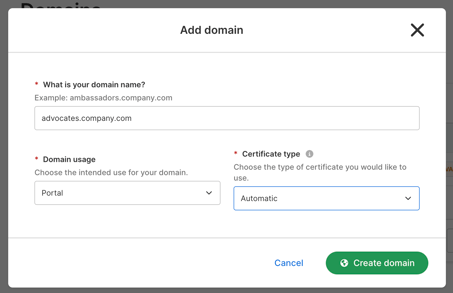
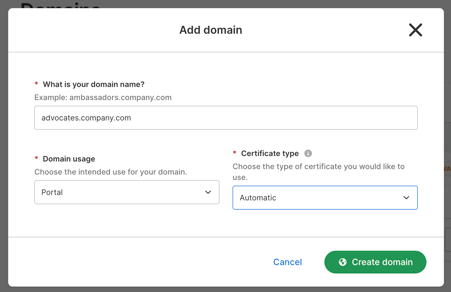
Enter a domain that is unique for your Advocate Portal. For example, if your website is company.com, you could choose something like advocates.example.com. We recommend keeping it as short as possible.
-
In Domain Usage, select Portal from the drop-down.
-
In Certificate Type, select Automatic.
-
Select Create Domain.
Hostname Validation
After submitting, you'll have the option to Install Domain with your domain provider through the Custom Domain Integration with Goentri (see documentation here), or proceed below.
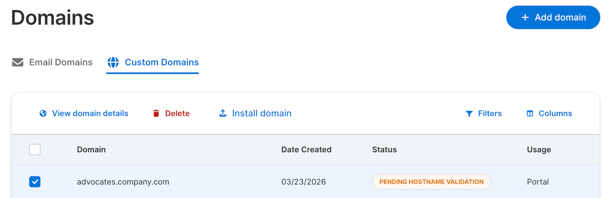
When you return to the Custom Domains page, you will see your new domain listed with the status Pending hostname validation. This means that the domain is ready for configuration.
-
Select the domain, and either click Install domain to use the Custom Domain Integration for a quick configuration, or select View domain details to manually configure.
-
A Domain Details dialog will appear with information used to validate your domain.
-
Create a CNAME record with your chosen subdomain with a target of v1.ambassadorportalv2.com:
-
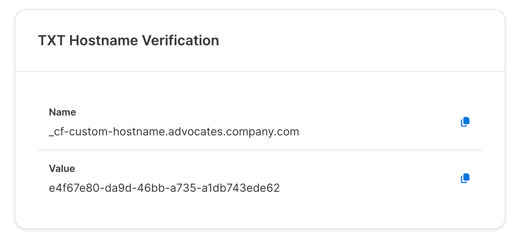
Create a TXT record for _cf-custom-hostname.<yourdomainhere> as indicated in Domain Details. The Content for the TXT record will be the Hostname verification value.
-
After some time (typically 5 min - 12 hours), you will see the status of your custom domain change to Pending certificate validation.
Once you receive this status message, you are ready for final steps.
Certificate Validation
Finally, to ensure your customers have the best experience, our custom domain name provider will issue a certificate against your custom host name. This will show that your snippet is being served securely on your website.
-
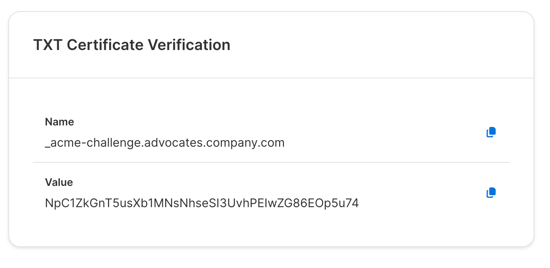
Find the Certificate verification name and Certificate verification value on the Domain Details dialogue.
-
Like in the section above, create a new TXT record. The Name will be the verification name Content will be the verification value.
-
After the TLS certificate has been requested, the Status will change to Certificate requested.
-
Once the certificate is provisioned, the status will change to Completed.
Note: The time needed to validate the domain and certificate can range anywhere from 15 minutes to several hours. The automated checks happen less frequently over time.
Once the status is Completed, you can see the custom Portal Domain login URL at Pages & Widgets > Advocate Portal > Login.
If you have any questions or need help, email support@getambassador.com