
How to Create a User
Administrators can add internal users to the Ambassador Admin application and assign the appropriate level of access during setup.
Note: Team members are different from advocates, customers, or other participants in your programs. This article covers access to the Ambassador Admin application only.
New to RBAC? Before creating users, we recommend reviewing RBAC Overview: Managing Access with Users, Groups & Roles to learn how roles, permissions, groups, and user access work in the Ambassador Admin application.
Before You Begin
Before creating a team member, review and plan for the following:
Roles & Permissions
Navigate to the Roles tab and review each role available and its associated permissions to determine which best matches the user’s responsibilities or whether a custom role is needed. You can clone/create custom roles ahead of time or do so in the flow of creating a user.
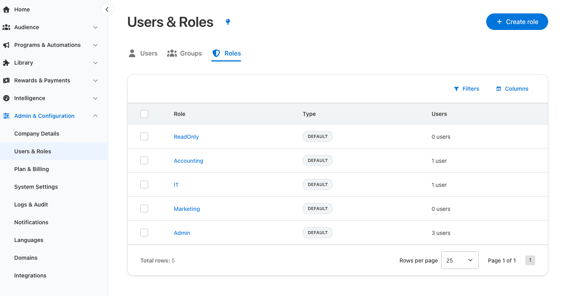
There are three paths to create a custom role:
- While creating a user - Within the new user popup window, select a default role > click customize permissions > name the new role > review/update permissions as needed > save.
This process automatically creates a new role for this user and makes it available to use with other users in the future. - Pre-clone a role & customize - From Roles table, select an existing role > click clone > name it > review/update permission as needed > save.
- Pre-create a new role from scratch - From Roles tab, click Create role > name it > review/select permissions from scratch > save.
Groups for Notification Routing
Groups allow you to organize users for notification routing. Here are a couple of examples:
- Low Reward Balance Notification - Setup Tango or Coupon Code low balance notifications and assign a group of users called “Reward Funding Group” to receive those email notifications when your funds or coupon inventory is running low and needs a top-up.
- System Errors - Setup System Error notifications and assign a group of users from IT or other applicable internal teams to review when there are API or Automation errors that need attention.
There are two paths to creating notification groups and assigning users:
- Create Group > name/description > assign existing users now or skip > save. Then, assign the group(s) when creating new users.
- Create User > role/permissions > assign existing group(s) > save.
Once groups are created, make sure to visit Admin & Configuration > Notifications to setup your notifications and assign the group.
Step 1: Open the Users Page
- Navigate to Admin & Configuration > Users & Roles.
- Select the Users tab.
Step 2: Create a New User
- Click + Add User.
- The Add User window will open.
Step 3: Enter User Details
Enter the following information:
-
Required: First/Last Name, Email, Job Title
-
Optional: Phone Number
Step 4: Assign a Role
Select from the default roles or a previously created custom role that best matches the user’s responsibilities.
Carefully review the permission summary displayed to ensure it meets your needs for that user.
If none of the available roles meet your needs, select a default role and choose Customize Permissions to create a new custom role, assign the role a name, and customize permissions.
Note: Only users with the Admin role can create other Admin users or assign the Admin role.
Step 5: Assign Notification Groups (Optional)
Use the Groups field to add the user to one or more notification groups or skip and assign the user to a group at a later time. To learn more about groups, scroll up to the first section of this article.
Note: Groups do not grant permissions or access to features. Permissions are controlled by roles.
Step 7: Save and Send the Invitation
- Review the user's information.
- Click Save.
An invitation email will automatically be sent to the user from hello@getambassador.com.
What Happens Next?
After the invitation is sent:
- The user appears in the Users table with an Invited status.
- The user receives an invitation email from hello@getambassador.com.
- The user remains in an Invited status until they successfully log in for the first time.
- Once they log in, their status automatically changes to Active.
Didn't receive the invitation email?
Ask the user to check their spam, junk, or quarantine folders and ensure emails from hello@getambassador.com are allowed by your organization's email security settings.
Using Single-Sign-On (SSO)
If your organization is using the Ambassador Admin SSO, there are a couple of important details to keep in mind:
- A team member must exist as a user in Ambassador before the SSO will work for them
- Your org can choose whether the password field is disabled from the login screen or enabled as an additional access option. If the password field is disabled, the welcome email will still contain a password at this time, but the user won’t have the option to enter it.
Need help deciding which role to assign? Contact support@getambassador.com or your implementation team.