
Overview
Tango rewards draw from a prepaid balance that you fund. Each time you send a referral reward or an advocate redeems points for a Tango reward, the reward amount (plus any fees) comes out of that balance. If the balance runs low, rewards and redemptions can be delayed, so it’s worth checking it regularly and topping it up before you need to.
Tip: New to Tango? Start with $1,000 to $5,000. Watch your activity for a few weeks, then decide how often and how much to fund.
Choose how to fund your account
|
Method |
Currency |
Time until funds are available |
Fees |
|---|---|---|---|
|
ACH |
USD only, US customers only |
2 to 5 business days |
No fee from Ambassador or Tango |
|
Wire transfer |
USD. CAD, EUR, and GBP on request. |
1 to 2 business days |
No fee from Ambassador or Tango |
|
Credit card |
USD only |
Up to 24 hours |
3.5% processing fee per transaction |
For ACH and wire, the processing time starts once Tango’s funding team gets payment confirmation from your bank. Your bank may charge its own fees, so check with them first.
Fund by ACH or wire transfer
- Go to Rewards & Payments > Reward Catalog > Tango (click Configure).
- When setting up Tango for the first time, toggle it on, set your funding currency, then go to Account Settings tab.
- Within this Account Settings tab, you can always find helpful information about Tango, your Available Balance in the Tango account, and Fund Your Account includes details to fund via ACH or wire transfer.
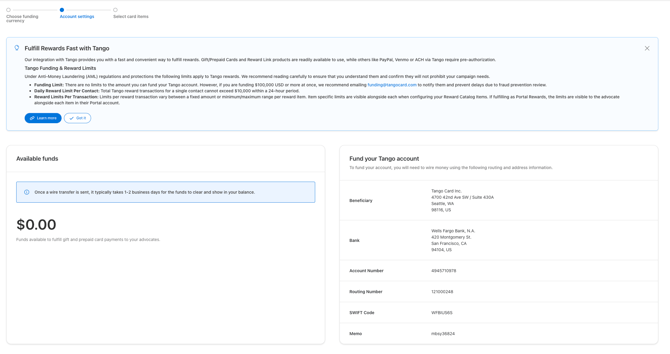
- Copy all of the banking and memo information to submit with your ACH/Wire Transfer process.
- In your bank’s transfer form, enter the Beneficiary, Bank, Account Number, and Routing Number.
- If you’re sending a wire, also enter the SWIFT code. For ACH, leave it out.
- Enter your Tango account number in the memo field. It starts with
MBSY. This is how Tango will match the funds to your account.
Need to wire funds in CAD, EUR, GBP, AUD but it’s only showing USD? Contact your Customer Success Manager or support@getambassador.com. We’ll need to complete a process to convert your funding account to the new currency. Other funding currencies are not supported by Tango.
Fund by credit card
- You: Email your Customer Success Manager or support@getambassador.com. Include the name and email of each person who’ll make credit card payments.
- Ambassador: We set up a Tango Portal login for each person.
- You: Log in to the Tango Portal, register a credit card, and make your funding payment.
The first funding by CC can take up-to 2 business days for review/approval. Future funding by CC is usually available within 24 hours.
Check your available balance
Go to Rewards & Payment > Reward Catalog > Tango (Configure) > Account Settings > or bookmark this page at anytime to view your available Tango balance - https://admin2.getambassador.com/app/rewards/catalog/tango.
Get notified about your balance
In-App Low Balance Alert
By default, Ambassador displays an in-app notification when your Tango balance reaches $500.
You can adjust this by going to Rewards & Payments > Reward Catalog > Tango (Configure) > Account Settings > scroll down to Low Balance Alert and enter your preferred balance threshold.
Email, Slack, or Webhook Low Balance Notification
You can setup an email, slack or webhook notification when your balance reaches a specific threshold.
Go to Admin & Configuration > Notifications > Add Notification > and configure the following:
- Notify Via: Select from Email, Slack or Webhook
- How often: Select from Every time, Daily Report, or Weekly Summary
- When this happens: Select Tango available balance reaches
- Balance Threshold: Enter your dollar amount
- For Email: Email / Groups: Select team members to send this notification or select a notification Group that you setup in Roles & Permissions.
- For Slack: Enter your slack details (this will require you to coordinate with your internal Slack admin)
- For Webhook: Enter your webhook details (this will require you to coordinate with your internal IT for external webhook support)
Funding Deposit notification
Want an email whenever funds land in your Tango account?
- If you have received a Tango Portal login, follow the steps outlined in this Tango support article.
- If you do not have access to the Tango Portal, send an email to support@getambassador.com with a request to setup funding notifications in Tango. Be sure to provide the name and email of each person (up-to five) that you would like to receive them.
Request an invoice
If your team needs an invoice before it can send funds, there are two ways that you can request one.
- Have access to the Tango Portal? Follow this Tango support article to generate a self-service invoice.
- Don’t have access? Email funding@tangocard.com with the following. Tango’s funding team typically replies within one business day.
- Your company name
- Your Tango account number (starts with
MBSY, found in the memo line on your Tango settings page)- The amount you want to deposit
- A contact email, if it’s different from yours
- Any extra details, like a purchase order (PO) number
Questions? Email support@getambassador.com