
Share Links, also known as referral links, are URLs with a unique code on the end called a shortcode. If enabled within the landing page selection of a campaign, Ambassador will automatically generate a a unique share link for each landing page when an enrolled advocate joins the campaign. The advocate then shares their link(s) with friends, family, network, following, etc to refer your business and your business will collect that unique code to track and create referral attribution in Ambassador. It is required to setup atleast one custom share link subdomain to brand the URL portion of the share link. You can use the same share link domain across all campaigns or create and configure different versions for different campaigns. Example: share.companyname.com
Starting the Domain Process
Registering a domain for use with share links (or any other feature supporting custom domains) is straightforward.
-
Navigate to admin2.getambassador.com and log in.
-
Go to Admin & Configuration > Domains > click the Custom Domains tab.
-
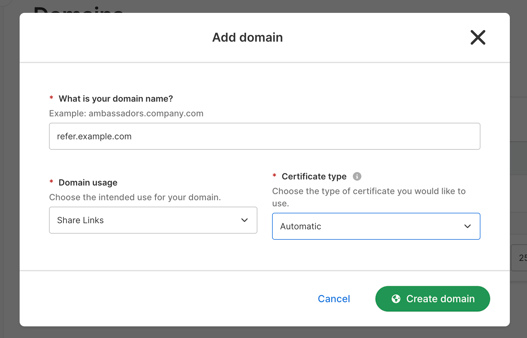
Enter a domain that is unique for your share links. For example, if your website is example.com, you could choose something like share.example.com or refer.example.com. We recommend keeping it as short as possible.
-
In Domain Usage, select Share Links from the drop-down.
-
In Certificate Type, select Automatic.
-
Select Create Domain.
Hostname Validation
After submitting, you'll have the option to Install Domain with your domain provider through the Custom Domain Integration with Goentri (see documentation here), or proceed below.
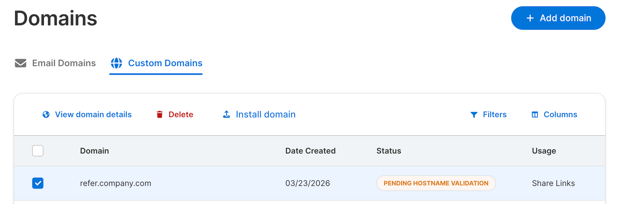
When you return to the Custom Domains page, you will see your new domain listed with the status Pending hostname validation. This means that the domain is ready for configuration.
In this section, you will verify your ownership of the custom domain you configured in the first section, allowing Ambassador to serve the link through it. These next steps may vary slightly depending on your hostname registrar.
-
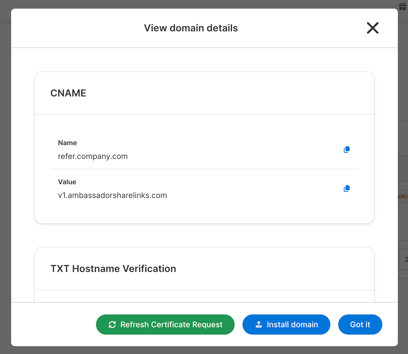
Select the domain, and either click Install domain to use the Custom Domain Integration for a quick configuration, or select View domain details to manually configure.
-
A Domain Details dialog will appear with information used to validate your domain.
-
Create a CNAME record with your chosen subdomain with a target of “v1.ambassadorsharelinks.com”:
-
Create a TXT record for _cf-custom-hostname.<yourdomainhere> as indicated in Domain Details. The Content for the TXT record will be the Hostname verification value.
-
fter some time (typically 5 min - 12 hours), you will see the status of your custom domain change to Pending certificate validation.
Once you receive this status message, you are ready for final steps.
Certificate Validation
Finally, to ensure your customers have the best experience, our custom domain name provider will issue a certificate against your custom host name. This will show that your snippet is being served securely on your website.
-
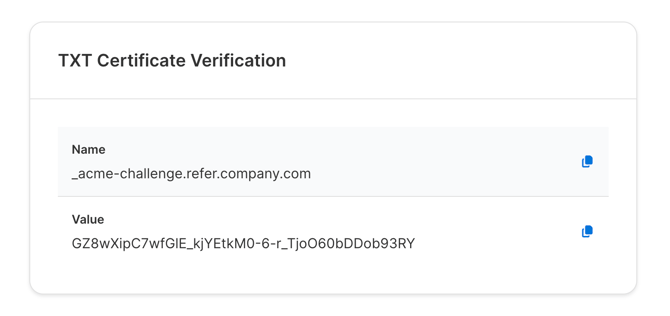
Find the Certificate verification name and Certificate verification value on the Domain Details dialogue.
-
Like in the section above, create a new TXT record. The Name will be the verification name Content will be the verification value.
-
After the TLS certificate has been requested, the Status will change to Certificate requested.
-
Once the certificate is provisioned, the status will change to Completed.
Note: The time needed to validate the domain and certificate can range anywhere from 15 minutes to several hours. The automated checks happen less frequently over time.
Add URL to Campaign and test
Once the status is Completed, your final steps are to add the share link to your campaign(s) setup and test.
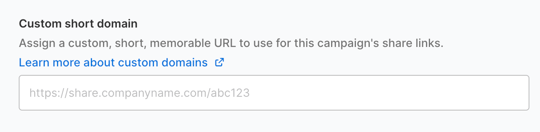
In Programs & Campaigns > select Program > select Campaign > select Customer experience > scroll down and select the drop-down for Select Customer Landing Pages > scroll down to the Custom short domain field and populate your new custom share link domain.
Adding the Same Domain to multiple Campaigns or Accounts
You can add the custom share link domain to multiple campaigns in a single account. If you have multiple company accounts in Ambassador, you will need to create a unique share link domain per account.
If you have any questions or issues, reach out to existing technical support contact or support@getambassador.com.