
Overview
Manage your internal user access to the Ambassador Admin with role-based access controls.
Role-Based Access Control (RBAC) helps organizations manage who can access different areas of the Ambassador Admin. Instead of assigning permissions one by one, access is granted through roles that can be assigned to team members.
RBAC helps improve security, simplify onboarding, and ensure users only have access to the tools they need.
RBAC does not control access to specific programs, campaigns, business units, or subsets of data. For example, if a user has access to the Programs & Campaigns section, they will have access to all programs and campaigns within the account.
Where to Access Users & Roles
Open the sidebar and navigate to Admin & Configuration > Users & Roles. The page has three tabs at the top: Users (default view), Groups, and Roles.
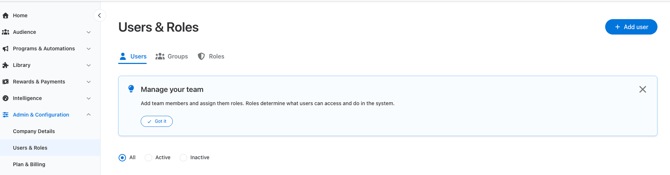
RBAC has three interconnected concepts
- Users: an individual assigned to a role and a status (active / invited / inactive).
- Roles: permission templates that decide what users can access, view, manage. Start with default templates and customize if needed.
- Groups: organizes users for notification routing. They do not grant permissions.
Default Roles
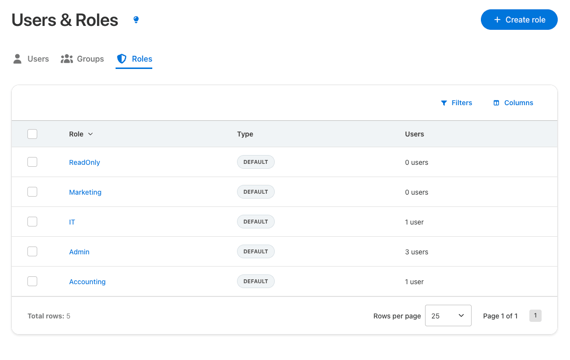
Ambassador provides five default roles - Admin, Marketing, IT, Accounting, and Read-Only with pre-configured permission levels. They can be cloned to customize, but not edited or deleted.
Custom Roles
If the default roles and permissions don’t meet your needs, there are three paths you can take to create a custom role.
- While creating a user - Within the popup window, select a default role and click customize permissions.
- Clone a role & customize - From Roles table, select an existing role and click clone.
- Create a role from scratch - From Roles tab, click Create Role.
Permission Levels
One of four permission levels can be assigned to each of the Admin objects and function within them:
- No access: the user cannot see the resource. Linked pages and menu items are hidden or gated.
- View only: the user can view the data but cannot create, edit, or delete it. Exports are not included by default — grant the export permission via Custom if needed.
- Full access: the user can do everything the resource supports: view, add, change, delete, export, plus any resource-specific actions (e.g., approve / deny / fulfill rewards) and exports.
- Custom: the user picks exactly which permissions to grant on that resource. This is how granular restrictions are configured (e.g., “edit contacts but don’t delete them”).
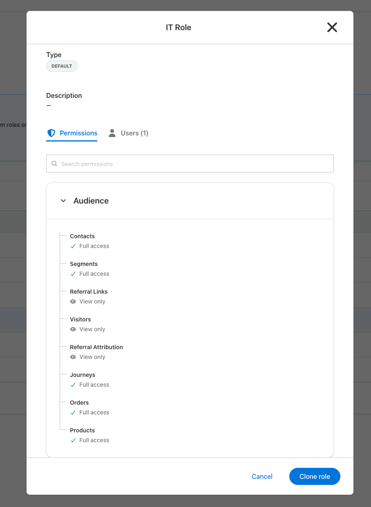
View all available permission level details from the Roles tab > select a role > click View.
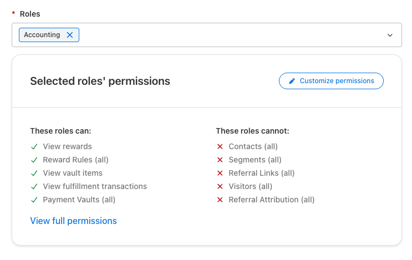
Or, when creating a user, select a role and click “View full permissions”
How permissions are organized
When creating a new role, permissions are organized following the left-side navigation structure. For example, under Audience you'll find resources like Contacts, Segments, etc. Each resource has its own permission level: No Access, View Only, Full Access, or Custom.
Resource-specific actions within Permissions
Some resources/navigation sections have more granular permission actions beyond view / add / change / delete. For example, the Transactions resource also has: Approve rewards, Deny rewards, Fulfill rewards, Revoke rewards, and Revert rewards to pending. These appear as individual checkboxes when the level is set to Custom and all are enabled by default when Full Access is given.
What users see without permission
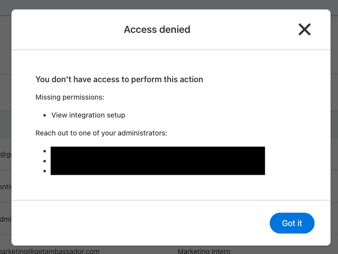
If a user navigates to a feature their roles don’t allow, the app shows an Access Denied modal that lists:
- The exact permissions that are missing, by display name.
- Their company’s administrators (name + email mailto link), so they know who to contact.
If the tenant has no admins, the modal shows a generic “Contact your administrator” message instead.
Groups for Notification Routing
Groups allow you to organize users for notification routing. Here are a couple of examples:
- Low Reward Balance Notification - Setup Tango or Coupon Code low balance notifications and assign a group of users called “Reward Funding Group” to receive those email notifications when your funds or coupon inventory is running low and needs a top-up.
- System Errors - Setup System Error notifications and assign a group of users from IT or other applicable internal teams to review when there are API or Automation errors that need attention.
When creating a user, assign them to existing groups or assign existing users when creating a group. Visit Admin & Configuration > Notifications to setup your notifications and assign the group. You can also update existing Notifications to add a group if needed.
Key Things to Remember
✅ Roles control access. RBAC does not allow you to restrict user access to certain programs
✅ Groups control notifications
✅ Inactive users keep historical attribution and audit history
✅ Default roles can be cloned to customize, but not edited or deleted
✅ If using single-sign-on (SSO), a team member must be created as a user first for the SSO to work