
Before setting up the integration, you will need to fulfill the following requirements:
-
Ambassador contract that includes the Salesforce Managed Package integration
-
System Admin access to the Salesforce organization that you will be integrating with
-
Important: We strongly recommend utilizing a dedicated Salesforce integration user to install and complete configuration to avoid issues with employee departures that cause the sync to stop.
-
-
Admin or IT level access to the Ambassador account(s) that you will be integrating with
-
Ambassador Installation Code or direct installation link, provided by an Ambassador team member. Note: You will not install through the AppExchange.
For questions about any of the requirements or the below instructions, please contact your Customer Success Manager at Ambassador.
Table of Contents
-
Installation
-
(1.) Install in Sandbox
-
-
Configuration
-
(2.) Create a named credential
-
(3.) Create a company & activate
-
(4.) Authorize the company
-
(5.) Run initial sync
-
(6.) Setup sync interval
-
(7.) Add package field "Referring Short Code" to standard object page layouts and setup mapping
-
(8.) Add package Related-Lists to standard object page layouts
-
(9.) Assign user permissions
-
(10.) Consider & setup any additional custom field needs
-
(11.) Setup Salesforce Flows for Referral Attribution and Orders
-
Installation
Step 1: Install in sandbox
Your Ambassador rep will provide sandbox and production installation links.
We recommend implementing in Sandbox first and running an end=to-end test there, then install and deploy to product with end-to-end testing as well.
Install for Admins Only
We recommend installing for Admins Only. Then, you can customize the permission sets included with the managed package to give applicable users access to the Ambassador app interface.
If it is installed for all users, then all standard users will be given Admin access to the Ambassador Admin app interface, which is typically not what you want to do.
Configuration
Step 2: Create a Named Credential*
Once installed, complete the below steps to create a Named Credential in Salesforce.
If you have more than one Ambassador account, you will need to replicate these steps for each.
Note: The package ships with an Ambassador API Example named credential, please disregard this and create a new one as instructed above.
2.1) From "Quick Find" in Salesforce Setup, type 'name' into the search box
2.2) Select Named Credentials
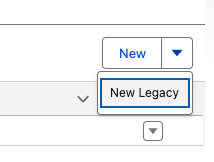
2.3) On the right, click the arrow next to New and select New Legacy
2.4) Label = Enter your choice of a label (e.g. Ambassador)
2.5) Name = Enter your choice of a name (e.g. Ambassador), and write it down to use in Step 4
2.6) For URL, enter https://api.getambassador.com
2.7) Certificate = skip/leave blank
2.8) Identity Type = select Named Principle
2.9) Authentication Protocol = select Password Authentication
2.10) For the API Username and API Key, retrieve from your Ambassador account. You must have an Admin or IT role in Ambassador to access this info.
In Ambassador v3 - go to Integrations / Ambassador Backend API - https://admin2.getambassador.com/app/integrations
In older versions of Ambassador - got to Settings, and scroll down to the “API Credentials” - https://admin.getambassador.com/settings/account
2.11) Username = enter API Username
2.12) Password = enter API Key (save this to enter again in Step 4)
2.13) Generate Authorization Header = unselect the box
2.14) Allow Merge Fields in HTTP Header = select the box
2.15) Allow Merge Fields in HTTP Body = select the box
2.16) Click Save
Step 3: Create a Company in Salesforce & Activate
Next, follow the steps below to create a "Company" record in Salesforce for each Ambassador account.
If you have more than one Ambassador account, you will need to repeat this setup for each of them.
3.1) From the App Launcher, open the the Ambassador Admin app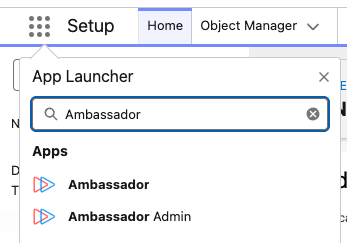
3.2) Click on the Companies tab
3.3) Click New
3.4) Enter a Company Name (i.e. the name of your company in the ambassador product instance. This should be unique per company if you have multiple instances of Ambassador in Salesforce)
3.5) Click Save
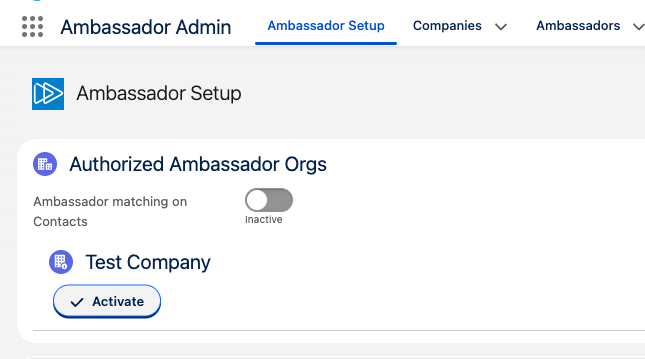
3.6) Click on the Ambassador Setup tab and refresh the page to load the new company
3.7) Click Activate

Step 4: Authorize the Company
To authenticate and sync your account, follow these steps to Authorize it.
4.1) On the Ambassador Setup page, Click Authorize Credentials
4.2) Enter the API Username from Step 2
4.3) Enter the Name of the Named Credential that you created in Step 2 (e.g. Ambassador)
4.4) Click Authorize
Step 5: Run Initial Sync
Once you've authorized your Ambassador account, follow these steps to run an initial sync to bring over any existing data from your Ambassador account to Salesforce.
Data brought over from Ambassador will create Custom Objects found in the tabs of the Ambassador Admin and Ambassador app interface within Salesforce. These include contacts, share links, short codes, campaigns, segments, and commissions.
5.1) When ready, go to the Ambassador Setup object tab and click Initial Sync.
5.2) Then, use the Logs table on the Setup page to monitor that the sync was successful for each of these custom objects:
-
-
Ambassador Setup - Admin setup page (only found in Ambassador Admin app interface)
-
Companies - For each Ambassador account that you have, you should have a Company record in this Companies custom object. (Ambassador Admin App only)
-
Ambassadors - Each contact that exists in your Ambassador account, regardless of status, creates an “Ambassador” record in this custom object. The ambassador status will range between enrolled, prospect, unsubscribed, or banned. Within the Ambassador product, you can locate these contacts of all status in the All tab of the Contacts table.
-
Note: If an ambassador record is created in Salesforce, it is not successfully created in the Ambassador product until there is an External ID associated with its Ambassador Salesforce record.
-
-
Campaigns - Each Campaign in your Ambassador account will create a Campaign record in this Ambassador custom object, with details and a status of Draft, Live, or Ended
-
Campaign Members - A Campaign Member record is created in Salesforce for each campaign that an enrolled contact is a member of in the Ambassador platform. While there is no record in the Ambassador system called "Campaign Member", you can still find all enrolled ambassadors in the Ambassador platform via the Contacts table / "Ambassador" tab there.
-
Note: In Salesforce, you can find an ambassador's campaign share link(s) and shortcode(s) on their related campaign member record(s). Not their "Ambassador" record.
-
-
Commissions - (only used for Ambassador v2 or older) - This table consists of all commission records in your Ambassador account. Note: If the "External ID" field is not populated on a Commission record in Salesforce, it means that the flow or other process to create it in Ambassador was not yet completed or was not successful.
-
Note: If you started new or migrated to Ambassador v3, you will use the Rewards custom object and records instead of Commissions.
-
-
Segments - This table consists of all Segments from your Ambassador account. Segments are how contacts are grouped in Ambassador. A contact must have a status of enrolled and be a member of a campaign segment to generate a share link/code.
-
Segment Members - This table consists of all records where an ambassador contact is a member of a segment in the Ambassador platform. (ex. If a contact is assigned to 3 segments in Ambassador, they will have 3 segment member records in Salesforce. While this object does not exist in the Ambassador platform, you can navigate to the Contacts table there and look for the "Segment" column/field on the record.
-
Journeys - If utilized, this object can be used to track and update the current stage of a referred contact in your sales cycle with their journey stage in Ambassador, as well as manually update a “current-step” if needed.
-
In standard practice, we recommend creating a Journey in Ambassador with stages that mirror your sales cycle for referred-contact’s. Then utilize an Ambassador flow template to create Salesforce flow that triggers stage changes of referred contacts to update their “current-step” (journey stage) in Ambassador.
-
The Ambassador Journey feature can also be utilized for other use-cases your team may have for tracking progress stages, such as Case Studies and more.
-
-
Referral Attributions - Links a prospect/customer to the advocate who referred them—usually at the first tracked stage a customer takes after clicking a referral link or entering a code.
-
If you are not using a coupon code widget or jsAPI to create the referral attribution from your website, the standard practice is to trigger a Salesforce flow to create a referral attribution at the earliest stage possible in your sales cycle.
-
-
Orders - In standard practice, Orders are created when an opportunity is closed won or other final conversion event in your sales cycle.
-
For most use-cases, an Ambassador Flow template is utilized to create an Order in Ambassador when an opportunity is closed won with a referring shortcode. Then, an Ambassador automation is triggered to create rewards, send communications, and more. When an Order is successfully created in Ambassador, the record will sync back to this object with an external ID.
-
Note - Orders will not reflect the final conversion event if your use-case calls for creating the Order at an earlier stage without revenue, such as when the Opportunity is created or another stage is met. If that’s the case, we recommend adding another flow to update the Order with revenue once the final stage/criteria is met so that any Order with revenue can be classified as the final conversion, especially if you are not utilizing Ambassador Journeys.
-
-
Rewards - This table is a transaction history for all rewards created for a contact in Ambassador, including the status, amount, related order, fulfillment type (once fulfilled), and more.
-
Logs - An archive of activity and errors associated with the Ambassador to Salesforce sync (Ambassador Admin app interface only)
-
Note:
-
The objects will sync asynchronously. Completion time for the initial sync will depend on the volume of existing records in the Ambassador account.
-
During an initial sync, the service will write logs in the lower section showing the results of each object in the sync. Within the logs, there is a refresh button, select it to refresh the table until you see all expected objects.
-
If you’re new to Ambassador, you may not have much data to sync yet. If that’s the case, your future Sync Intervals (Step 6) will incrementally bring in new data and data updates from Ambassador.
-
Remember, the package does not sync data from Salesforce to Ambassador. Instead, it just pushes new data and data updates from Ambassador to Salesforce.
-
If the "Initial Sync" button is grayed out, it has already been executed once before.
-
If you need to re-run an initial sync, click on Advanced Settings > uncheck "Full Sync" > Save. Then, refresh the Ambassador Setup page and click "Initial Sync" button again.
-
If one or more of the object syncs result in an error, click on "Logs" and click into a specific log to view the error details.
-
If you're able to resolve the error or want to re-try, re-run the initial sync using the steps noted above.
-
If you're unable to resolve the error, email your Ambassador Customer Success Manager to ask for help and provide screenshots of the error details.
-
Step 6: Setup Sync Interval
Once the initial sync is complete, follow these steps to set up the incremental sync interval that will pass new and updated data from Ambassador to Salesforce.
6.1) Within Ambassador Setup, click on Advanced Settings.
6.2) In the Custom Settings window, click on the Sync Interval drop-down and select between 15-minutes to once daily. Click Save.
Note:
-
You can adjust the Sync Interval at any time.
-
For previous Salesforce package users, the paradigm for syncing has changed. Previously Ambassador would push data into Salesforce upon our own interval schedule. With the new package, it will retrieve data from Ambassador on the sync interval schedule that you set here.
Step 7: Add package field "Referring Short Code" to standard object page layouts and setup mapping
For referral tracking, you will need to add our "Referring Short Code" package field to the page layouts of Lead, Contact, Account, and Opportunity standard objects and setup mapping between those that you use.
7.1) Add Field name: "Referring Short Code" (GetAmbassador__Short_Code__c) to page layout.
7.2) Setup automation to map this field between each object.
Tip:
-
The Referring Short Code is a unique referral code assigned to the person who referred them. It is critical to map through your process and include in the flow to create Referral Attribution and Orders in Ambassador.
-
We recommend giving your marketing, sales, and service salesforce users atleast read-only permissions to see and manage this field.
-
If you use other custom objects and would like to add the referring short code or other details about the ambassador to the custom object, you can create a custom field and follow the recommendation in Step 10 below.
Step 8: Add package Related-Lists to standard object page layouts
For visibility to general users of Salesforce, you will need to add our "Ambassadors" package related lists to the following standard object page layouts.
Ambassadors - Add to the Contact object
If "Ambassador matching on contacts" is toggled on, their Contact object will be matched with an Ambassador custom object by email and create a Related List on the standard Contact record.
Step 9: Assign User Permission Settings
The Ambassador package includes two app interfaces in Salesforce - “Ambassador Admin” and “Ambassador”.
Salesforce users with the “System Administrator” profile already have view and modify access to these by default.
Give Standard users access to either of the interfaces/apps with the following premade permission sets that you can assign as-is or clone and modify as needed.
Permission Sets
-
v3.22 - Current Package Version
-
Ambassador Admin - This interface is intended for System admins to setup and manage the Ambassador package with access to all custom objects, including incremental sync schedule and logs. System admins have access by default. If you have non-System Admins who need access to help configure setup or access error logs, you can assign this permission set.
-
Note for new Ambassador 3 clients, please note that the “Commission” object is not applicable to you. This will be removed when you upgrade to the new v3.23 version and update permission sets to use the new Ambassador Admin 3 and Ambassador 3 coming soon.
-
-
Ambassador 3 - Assign this permission set for standard users affiliated with the program that you want to give access to the Ambassador app and data without access to the Settings and Logs objects. This will include access to the Ambassador 3 objects and exclude legacy Commission object.
-
Ambassador - This is a legacy permission set that is not applicable to new clients.
-
-
v3.23 - New Package Version Coming Soon
-
This release will introduce the new Ambassador Admin 3 permission set / app interface that eliminates the legacy “Commission” object, as well as introduces the new “Rewards” object to both permission sets.
-
How to Assign Ambassador Permission Sets to a User
-
Open Setup: Click the Gear Icon (⚙️) in the top right corner and select Setup.
-
Find Users: In the left-hand search box (Quick Find), type "Users" and click on Users.
-
Select the User: Click the Full Name of the person you want to update.
-
Manage Assignments: Scroll down to the Permission Set Assignments section and click the Edit Assignments button.
-
Add Ambassador Permissions:
-
Look at the Available Permission Sets list on the left.
-
Select Ambassador Admin and click the Add arrow (pointing right) to move it to the Enabled list.
-
Select Ambassador and click the Add arrow to move it to the Enabled list.
-
Select Ambassador 3.0 and click the Add arrow to move it to the Enabled list.
-
-
Click Save. The user now has all three Ambassador permission sets active.
Step 10: Consider & setup any additional custom field needs
Outside of the Referring Short Code and Related Lists, your team may be interested in mapping data from the Ambassador custom objects, such as the email or other info about a referring ambassador.
Our suggestion is to:
-
Create custom fields to store values on individual standard records
-
Create a flow for each standard record type with the following:
-
Execute on the: After Insert / After Update of the standard record
-
Check to see if the Short_Code__c is not empty
-
(Option 1) Look up related Campaign_Member__c and traverses the Ambassador__c relationship to get the:
-
Ambassador__c.First_Name__c
-
Ambassador__c.Last_name__c
-
Ambassador__c.Email__c
-
-
(Option 2) Store a "Lookup" Field with the matching Ambassador__c
-
Then, populate this value into the custom field
-
Alternatively, you could do this in Apex via a trigger if you need a further level of automation.
Salesforce Flows for Referral Attribution and Orders/Rewards
You will use Salesforce Flows to create referral attribution in Ambassador, along with referred Orders and sync Order updates, which then trigger Automations in Ambassador to create/update rewards, send communications, and more from Ambassador.
Please see additional resources for details on example flow scenarios and Salesforce flow templates provided with the package that we recommend beginning your flows from and customizing as needed.
-
v3 SFDC Ambassador Example Flow Scenarios
-
v3 SFDC Ambassador Flow Template for Referral Attribution
-
v3 SFDC Ambassador Flow Template for Order Create
-
v3 SFDC Ambassador Flow Template for Order Update