
Overview
Tango lets you reward advocates in your referral and loyalty programs with gift cards, prepaid cards, PayPal, and Venmo, right from Ambassador. When you turn on Tango, we create a sub-account for your company under the Ambassador and Tango master agreement. You add funds to that account, and your Tango rewards draw from that balance.
Before you begin
- You’ll need permission to Reward Catalog, Payment Vaults and Fulfillment Methods.
- Tango rewards come out of a prepaid balance, so plan to fund your account before you issue any rewards. Learn how in Fund your Tango account and track your balance.
Enable Tango
- In Ambassador, go to Rewards & Payments > Reward Catalog > Tango > click Configure.
- Toggle to Enable, select the currency you want to fund, and set your low-balance in-app alert threshold.
Once Tango is on, the Account Settings page shows your Tango account details. You’ll see your available balance, your Tango account number, and the bank details you’ll use to send funds.
Note: Once you’ve selected a funding currency, it can’t be changed through the Admin app. You’ll need to email support@getambassador.com for help to convert it and setup a new Tango account in that currency.
Select Tango items for all of your programs
Next, select the specific Tango items your team can later add to Payment Vaults — like Gift Cards, Prepaid Cards and Cash Equivalent. Some cash-equivalent options, such as PayPal/Venmo via Tango, require Tango Compliance pre-approval before you can enable them.
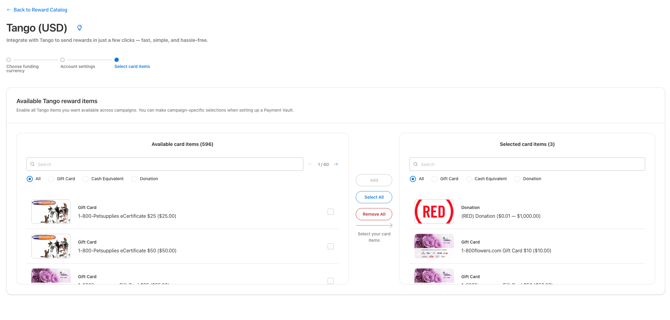
Rewards items that need pre-approval
Federal regulations add extra terms to some Tango rewards, so they need approval before we can turn them on for your account. These include, but aren’t limited to:
- Amazon in Mexico
- PayPal (through Tango)
- Venmo (through Tango)
- Disbursement Link
Important: Want to use one of these, or not seeing a reward you need? Contact your Customer Success Manager or email support@getambassador.com, and we’ll start the approval process with you.
What happens next
When building your campaign, setup these additional reward related objects:
- Payment Vault - Create a Payment Vault for each campaign > select Cash > Tango > then choose/add the Tango items that should be available for that campaign.
- Reward Rule - Reward Rules help you set limits on how much someone can earn in a campaign, and add expirations so unused cash or points return to your budget.
- Reward Calculation - Create a Reward Calculation to build formula’s for the amount of reward amount someone will earn towards Tango items. These will be assigned during your Automation configuration process.
- Fulfillment Method - Identify and configure you’re preferred method to fulfill/deliver the Tango items.
- Direct Payment - Select this if you plan to send the advocate an email or sms directly with a specific e-gift card or other item from Tango.
- Portal Rewards - Select this if you’re utilizing the Advocate Portal and want to let advocates redeem their available points and cash balance for a reward of their choice. It will include Tango items from the campaign’s Payment Vault configured for Tango. No deduction from your funding balance or item inventory is made until they redeem.
- Storefront Rewards - Select this if you’re utilizing Storefront to send advocates a personal redemption link they can click to redeem available points and cash balances for their choice of a reward — no portal login required. It will include Tango items from the campaign’s Payment Vault configured for Tango. No deduction from your funding balance or item inventory is made until they redeem.
- Emails or SMS - Create the applicable email or sms templates to notify the advocate of their rewards. Portal and Storefront Rewards require an initial notification upon fulfillment, and a followup notification for redemption. See details here - How to configure Storefront Rewards.
- Automations - Create the applicable automations for your campaign that will create, approve, deny, fulfill rewards and send notifications.
Questions? Email support@getambassador.com