
Overview
Tax Form Management gives advocates a secure, guided experience for completing and submitting an electronic W-9.
Advocates can access the form from the request email, a notification in the Advocate Portal, or the landing page selected in your Tax Form Management settings. The same standardized tax form experience is used regardless of where they begin.
Notifications within Portal & Reward Widgets
Advocates see a contextual banner in their portal (and in embedded reward widgets, if you use them on your own site). It changes automatically based on their situation:
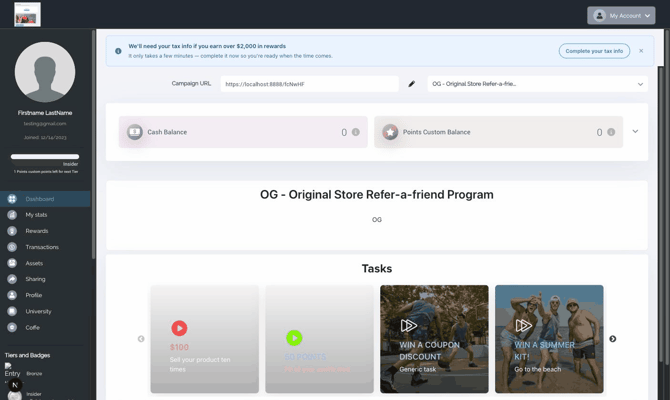
Getting started — a friendly heads-up, dismissible:
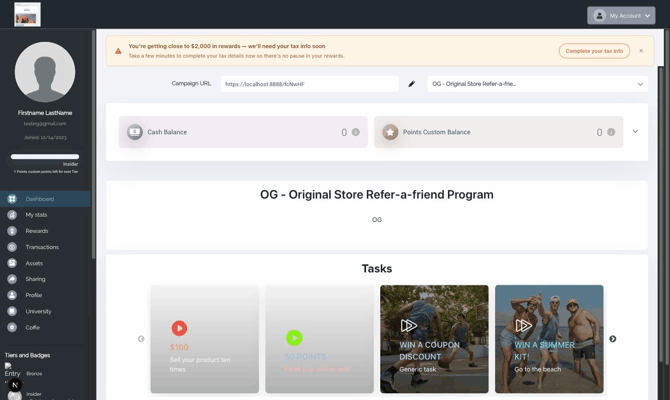
Getting close to the limit — a stronger nudge, dismissible:
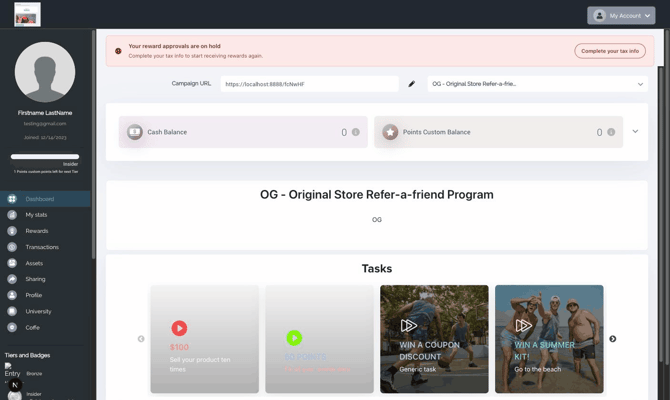
Limit reached without a W-9 — approvals on hold, stays visible until resolved:
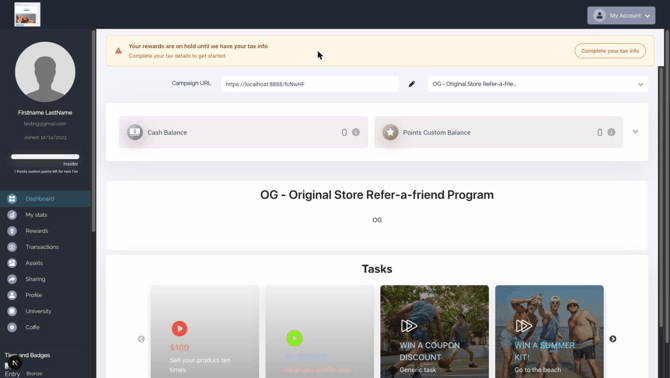
Strict mode — shown from day one until the W-9 is on file:
The banner disappears for good once the advocate's tax information is verified.
The guided tax form
When the advocate clicks on the email and taken to the Portal, they’ll need to login and then click on the complete your tax info banner. If they’re directed to a landing page, the merge tag with their affiliate id from Ambassador system will automatically trigger the tax form for them.
The process is a guided step-by-step form to electronically submit their information — advocates never need to download or print anything.
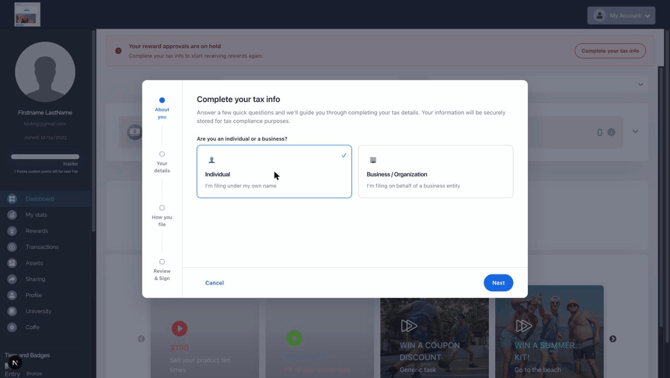
Step 1 — are you filing as an individual or a business?
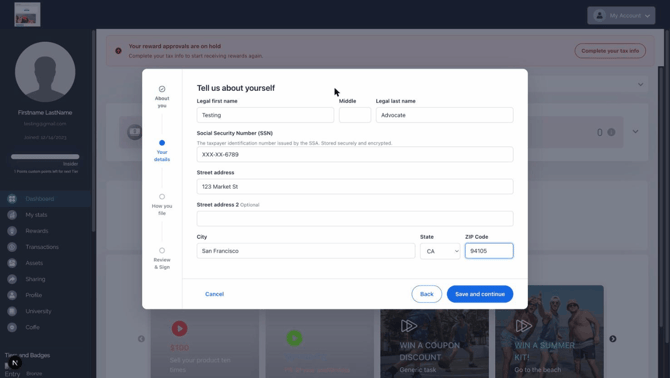
Step 2 — legal name, SSN or EIN, and address. The tax ID is masked as they type and stored encrypted:
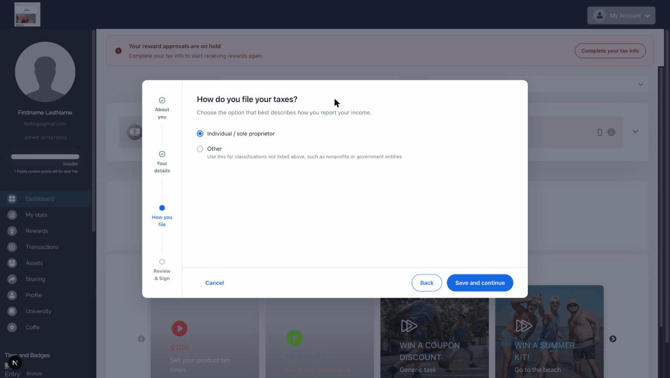
Step 3 — how they file their taxes (their federal tax classification):
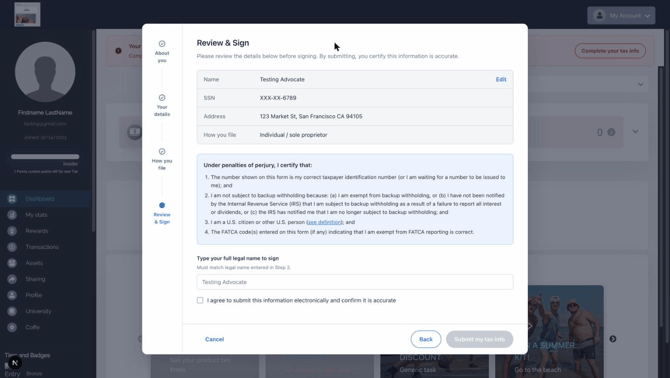
Step 4 — review everything, read the IRS certification, and sign by typing their legal name:
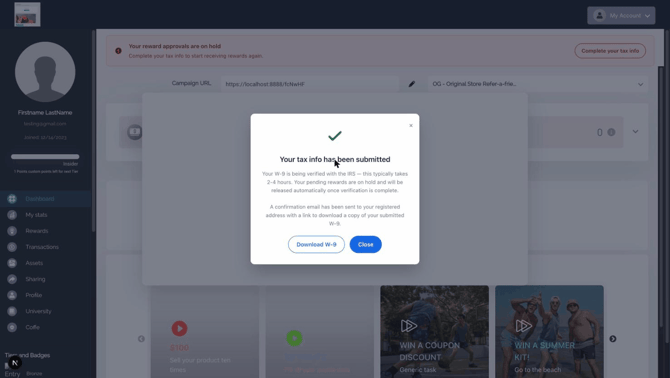
Done — the advocate can download a PDF copy of their completed W-9, and a confirmation email is sent:
Identity verification
A W-9 contains sensitive personal information, so before the form opens, the advocate verifies their identity:
- The advocate clicks Send verification code and receives a one-time 6-digit code at their registered email address.
- They enter the code to unlock the form:
Security details worth knowing:
- Codes are single-use and expire after 10 minutes; resending has a short cooldown to prevent abuse.
- The tax ID (SSN/EIN) is encrypted at rest — after submission, only the last 4 digits are ever displayed, to you or to the advocate.
- The verified session is short-lived: if the advocate walks away, they'll simply be asked to verify again.
Questions? Review the related articles or email support@getambassador.com.