
Overview
Tax Form Management includes automated emails that notify advocates when tax information is needed, remind them to submit it, and explain when reward approvals are placed on hold.
Depending on your configuration in Tax Management settings, email templates and automations are automatically created for the following stages:
- Initial W-9 Request
- W-9 Reminder
- Approval Held Notification
The email templates and automations can be reviewed and customized to meet your needs.
Email Templates - Locate and update within Library > Emails.
Automations - Locate and update within Programs & Automations > Automations.
Breakdown of Emails & Reminders
Initial W-9 Request
This email template is created if you chose to send the initial W-9 request once the advocate meets the threshold.
If using your own email template, remember to add the the {w9_collection_link} merge tag.
The included button or direct use of the merge tag directs the advocate to the Portal or Landing Page selected in your Tax Form Management settings. This is an important element required to work correctly.
W-9 Reminder
The W-9 Reminder is sent when an advocate has not submitted their tax form within a configured period after the initial request.
The default reminder delay is seven days. You can customize the Delay period within the Automation.
If you’d like to send additional reminders after 7-days, you can add additional delay and outcomes to send email.
Approval Held Notification
The Approval Held Notification is sent when an advocate’s reward approval is placed on hold because a verified W-9 is not on file.
This email should clearly explain:
- Why the reward is being held
- How the advocate can submit or correct their tax information
- That the reward has not been denied
- That held rewards will be released automatically after verification
Advocates do not need to contact an administrator to have the reward approved again. Once their tax information is successfully verified, eligible held rewards continue through the normal approval process automatically.
How to Activate or deactivate available emails
Email Templates - Locate and update within Library > Emails.
Automations - Locate and update within Programs & Automations > Automations.
To disable the email notifications, you'll turn off the related Automation.
To update the automation trigger or make changes, you'll locate the related Automation > open to edit > publish changes > and ensure it's turned on.
For example, you may decide to include the initial tax form request in another program communication. In that case, you can deactivate the Initial W-9 Request while leaving the reminder active.
Before deactivating an email automation, confirm that advocates will still receive clear instructions about:
- Why their tax information is needed
- Where to submit it
- What happens if they reach the $2,000 calendar-year limit without a verified W-9
Customization guidelines
When editing tax form emails, keep the following recommendations in mind:
- Explain the request in clear, straightforward language.
- Avoid suggesting that the advocate’s reward has been denied.
- Tell advocates exactly where to complete their tax form.
- Remind them to use their legal name as it appears in IRS records.
- Explain that verification typically takes two to four hours.
- Let them know that held rewards are released automatically after successful verification.
Automation sequence customizations:
-
You can update the default automations to delay timing or add additional new delays
-
Update the Send Email outcome to select other email templates
-
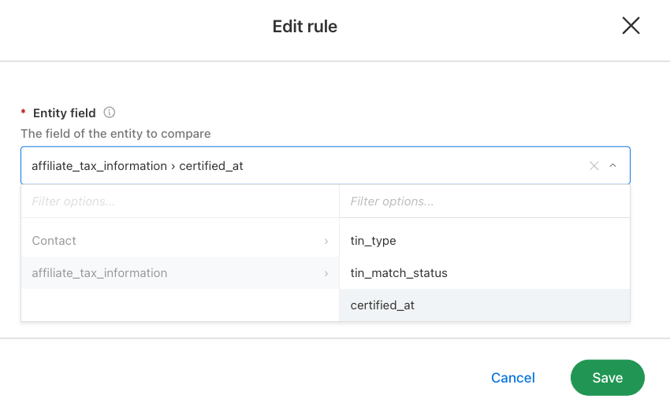
Update automations or build your own with Tax related automation triggers and/or utilize the If/Else condition for affiliate_tax_information

Questions? Review the related articles or contact support@getambassador.com